
Portion size methods
This page describes the portion size estimation methods used in Intake24 with respect to user interaction. See the API documentation for the related API functions and data structure description.
Properties
Estimation method
Portion size method to be used for portion size estimation.
Description
Description of the portion size estimation method displayed during selection process.
Pathways
List of pathways the portion size estimation method can be used in.
addon food- portion size estimation method will be available inaddon-foods-promptpromptassociated foods- portion size estimation method will be available during associated foods selectionfood search- portion size estimation method will be available during food searchrecipe ingredient- portion size estimation method will be available during recipe ingredient selection
Conversion factor
Conversion factor to be applied during portion size estimation calculation.
Portion size estimation selection
This screen is the first step of the portion size estimation process.
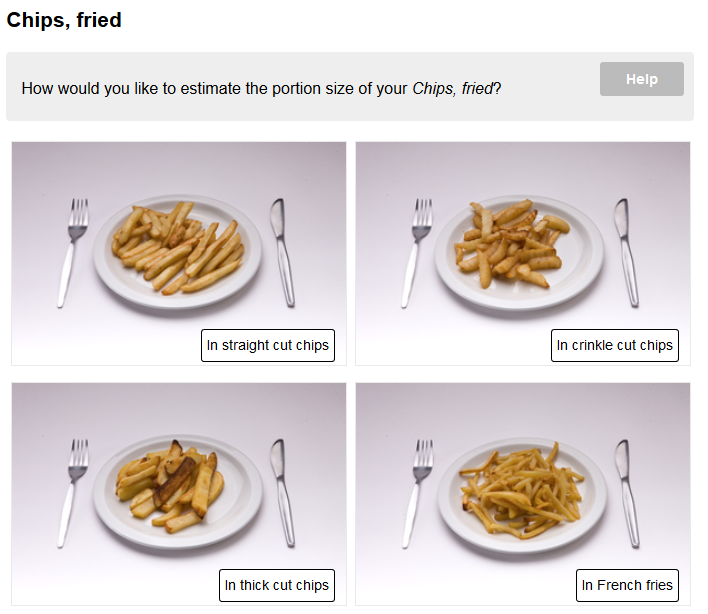
If there is more than one way to estimate the portion size defined for the food the system will ask the respondent to choose the option they would like to use.
Each option has an associated small image and a text description. The description text is localised and displayed in the respondent's local language. Portion size estimation options don't necessarily have to use different methods (i.e. they could be several as served options using different sets of images).
The number of options that can be associated with a food is technically unlimited, but in practice is typically between 2 and 5.
If there is only one portion size estimation option associated with a food, this screen is not shown.
See also the get food data API function and the
As served
Method id: as-served
Parameters
serving-image-set: reference to an as served image set used to estimate the size of the portion that was served to the respondent.leftovers-image-set: reference to an as served image sequence used to estimate the amount of food left by the respondent.multiple- flag whether quantity selection is allowed for the portion size estimationimage map labels- flag whether labels should be displayed on the images in the portion size estimation
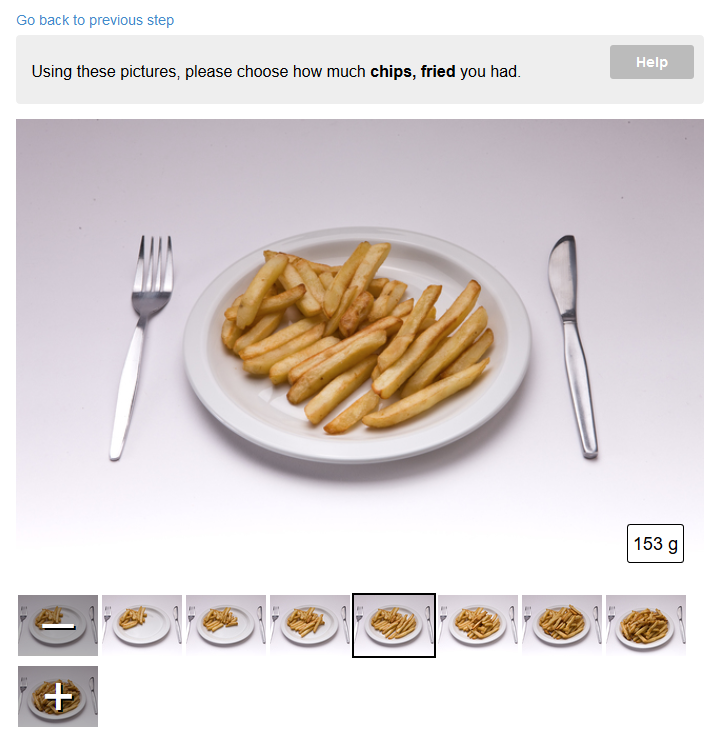
The "as served" portion size estimation method uses a sequence of images of food served on a plate. The weight of food shown in each image is carefully measured when the pictures are taken and is stored in the database.
Usually there are seven images covering 95% of the typical portion sizes, however this number is not fixed and some foods use fewer or more images.
The user is asked to select the image that looks most like the amount of food they were served. The images can be selected either using the I had less and I had more buttons or by clicking on a thumbnail.
There are special options to indicate that the amount of food consumed was less than in the smallest or more than in the larges portion in the available images. These options can be accessed either by clicking the I had less or I had more button while having the smallest and the largest potion size image selected respectively or by clicking on the special - or + thumbnails.
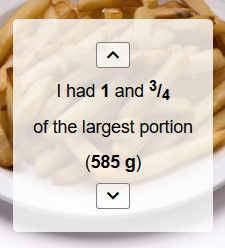
If this option is selected, the respondent is asked to choose the fraction of the smallest porion or the multiple of the largest portion. The fraction selection is currently implemented using arrow buttons that allow to adjust the fraction in 1/4 increments. The resulting portion weight is also displayed for reference.
The "as served" method can optionally include a second set of images representing the leftovers. If leftovers function is enabled, the respondent is asked to indicate how much food they had left using the same UI and the resulting portion size is calculated as (serving weight) - (leftovers weight).
Auto
Method id: auto
Automatically applied portion size method for applicable pathways.
Parameters:
mode- calculation mode for the auto portion size estimation methodweight- specified weight is used as portion size estimationweight per 100g of parent- specified weight per 100g of parent food is used as portion size estimation
value- weight value to be used for portion size estimation
Cereal
Method id: cereal
The cereal portion size method uses an image map to select the bowl type:
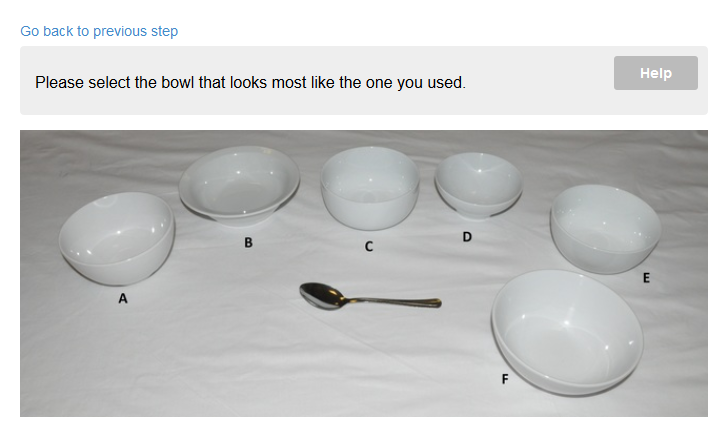
and then uses the "as served" method for that bowl:
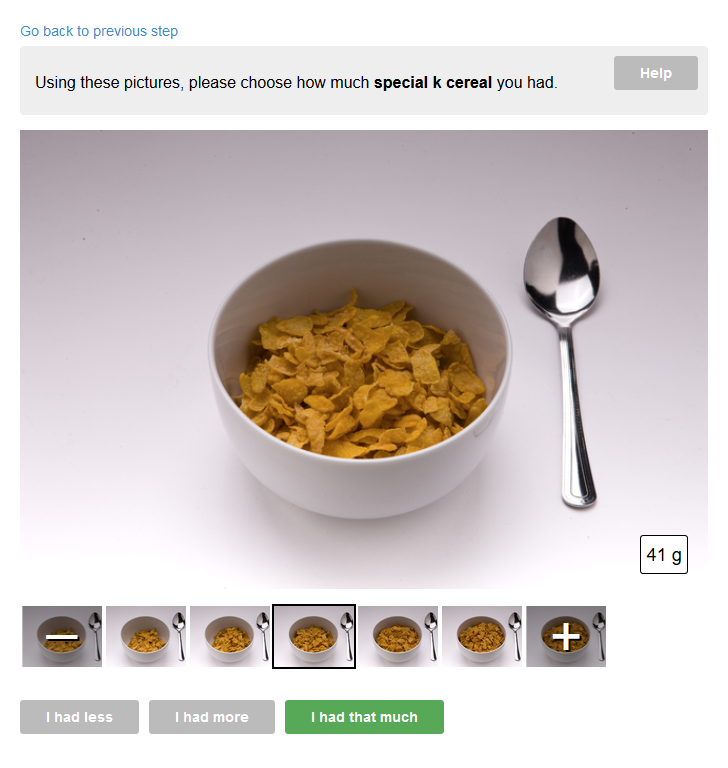
The system chooses from a combination of the bowl type and the cereal type (passed in the portion size estimation method parameters) to select the correct as served set.
Parameters
type: the type of cereal used to determine the as served image set. Possible values:hoop,flakeorrkris(for Rice Krispie type cereals)
Direct weight input
Method id: direct-weight
This portion size method consists of a simple input box where the respondent can enter the exact weight or volume of their food or a drink. This method is mainly used for recipe ingredients and is currently unused because the recipe subsystem is disabled.
Parameters
No parameters.
Drink scale
Method id: drink-scale
Parameters
drinkware-id: reference to a drinkware set (see the API method)initial-fill-level: initial position of the fill level slider (in normalised units, 0.0 to 1.0).skip-fill-level: if set to true the “how full was your cup/glass” question will be omitted and the system will proceed directly to “how much you had left”. This is useful when the initial fill level is standard, e.g. for takeaway cups.multiple- flag whether quantity selection is allowed for the portion size estimationimage map labels- flag whether labels should be displayed on the drinkware photos in the portion size estimation
This portion size estimation method is used for hot and cold drinks served in a glass, cup or mug. In the first step, the respondent is offered to choose the glass/cup/mug that they would like to use:
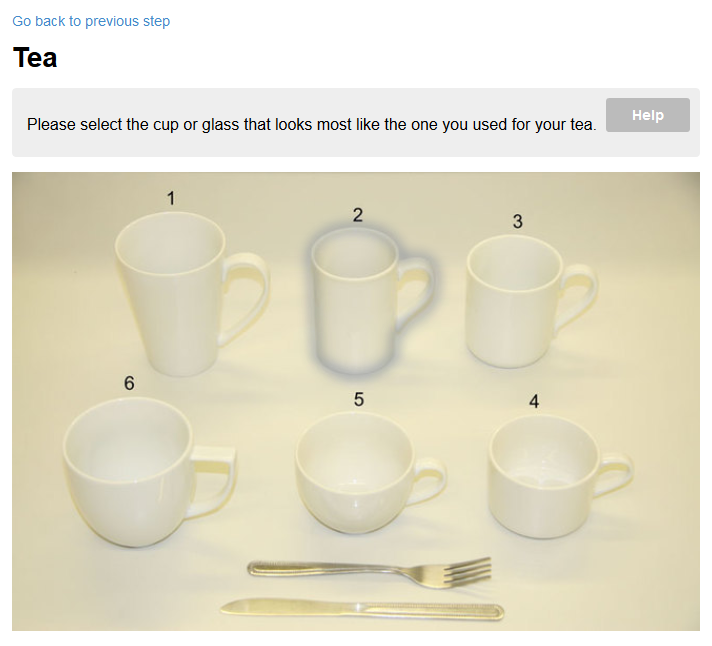
The UI element used in this step is called an "image map". It is similar to HTML image maps but uses a custom implementation to avoid compatibility issues between browsers. An image map is a combination of a base image showing a set of distinct objects that the user can click/tap individually on to select one. In the image above, mug 2 is selected as shown by the outline.
After the appropriate mug/cup/glass is selected, the system presents a "sliding scale" control based on the selected item:
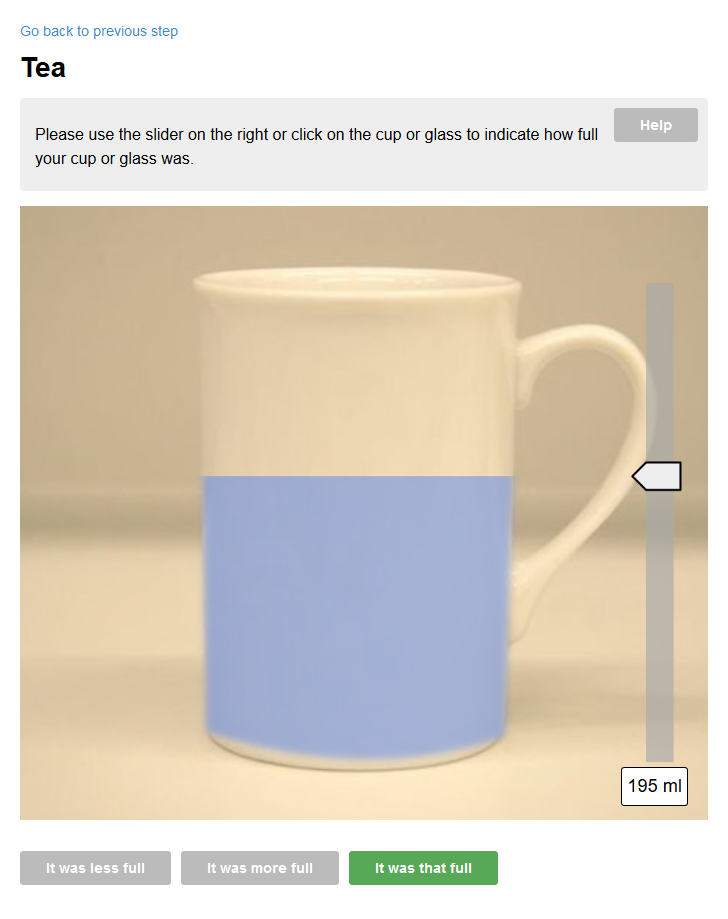
The sliding scale consists of a side view of a mug/cup/glass combined with an overlay that represents the fill level. Respondents can use the slider on the side or simply click/tap on the image to adjust the fill level.
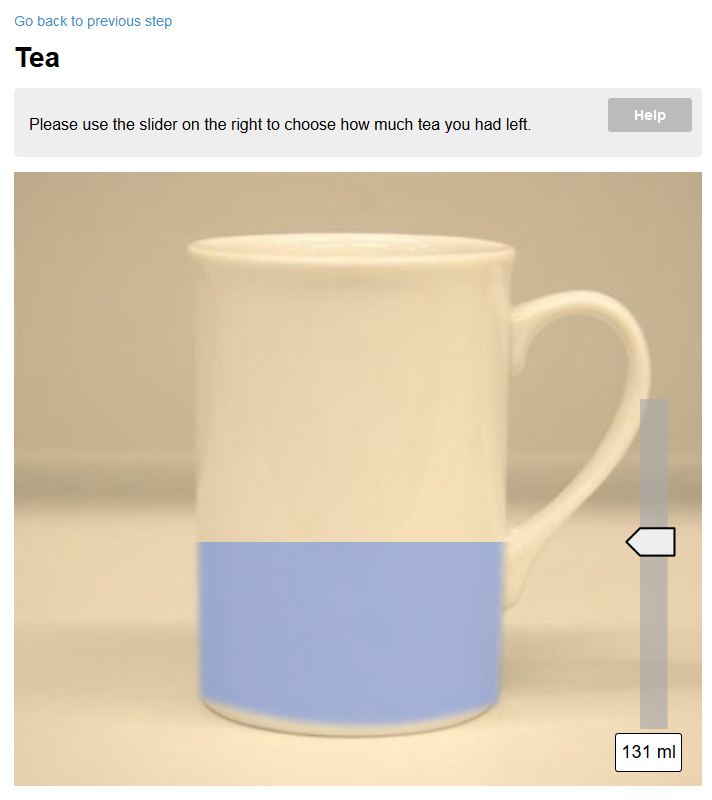
Finally, the respondents are asked to indicate how much of the drink they had left. In this step the scale is limited to the initial fill level reported in the previous step:
Guide image
Method id: guide-image
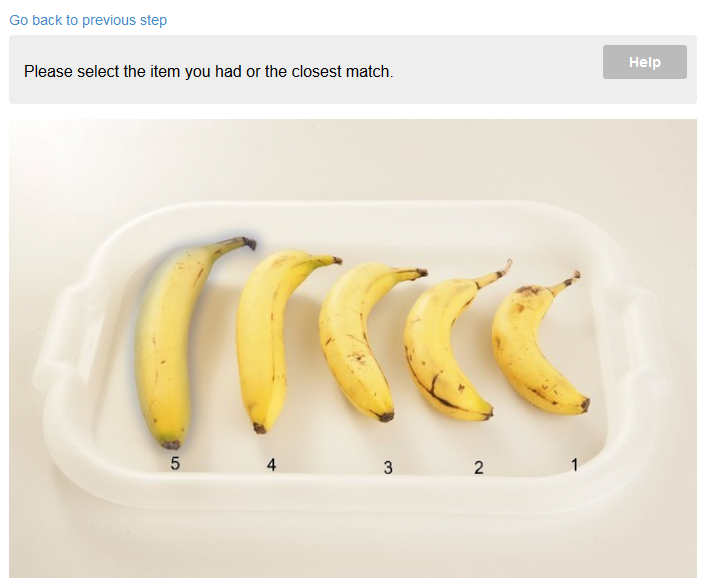
The "guide image" portion size estimation method uses a single image showing several distinct objects. The respondent is asked to select the object that most closely matches the food they had. This could be used to determine, for example, the size of a fruit, or the shape and volume of a tin.
Objects can be selected by either clicking/tapping them directly in the image or by using the arrow keys on the keyboard.
Each object in the image is defined in terms of its outline (represented as coordinates of points of a polyline), description and weight.
In the current implementation each outline is a separate transparent overlay image generated on the server when changes are made to the list of objects in the guide image. This technique was used for compatibility purposes with older browsers but it is no longer relevant and should be replaces with a canvas or SVG based approach instead.
Having selected an object the respondent is then asked to enter how many items like that they had.
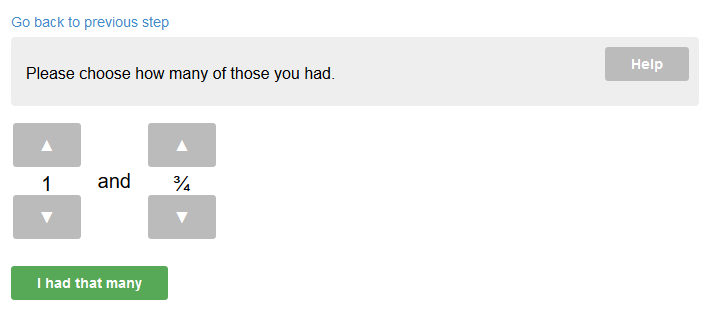
The quantity input UI currently has two separate counters for whole and fractional parts. This screen has been identified as one of the more confusing ones and needs a redesign.
Parameters
guide-image-id: reference to a guide image definitionimage map labels- flag whether labels should be displayed on the image in the portion
Milk in a hot drink
Method id: milk-in-a-hot-drink
This is another special case portion size estimation method for milk that is only applicable when milk is linked to a food from the "hot drinks" category.
The milk percentage (by volume) is calculated as list of options with defined ratios of the reported hot drink volume correspondingly.
Parent portion
Parent portion is adjusted based on the selected milk ratio for the portion size estimation.
drinkPortionWeight = servingWeight * (1 - milkRatio)
milkServingWeight = servingWeight * milkRatio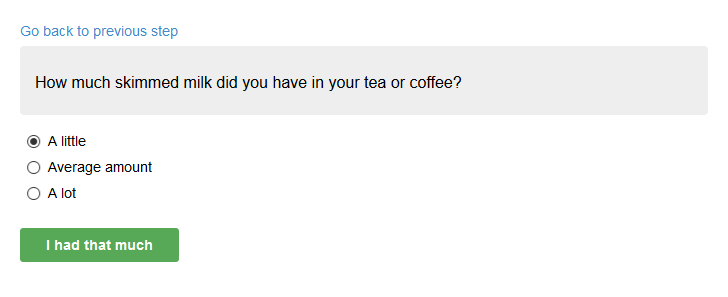
Conversion factor
Conversion factor is not applied, the portion size estimation is based solely on the milk ratio defined in the options list.
Milk on cereal
Method id: milk-on-cereal
Milk on cereal is a special case portion size estimation that is only applicable to milk (i.e. foods listed under the "Milk" category) linked to a cereal.
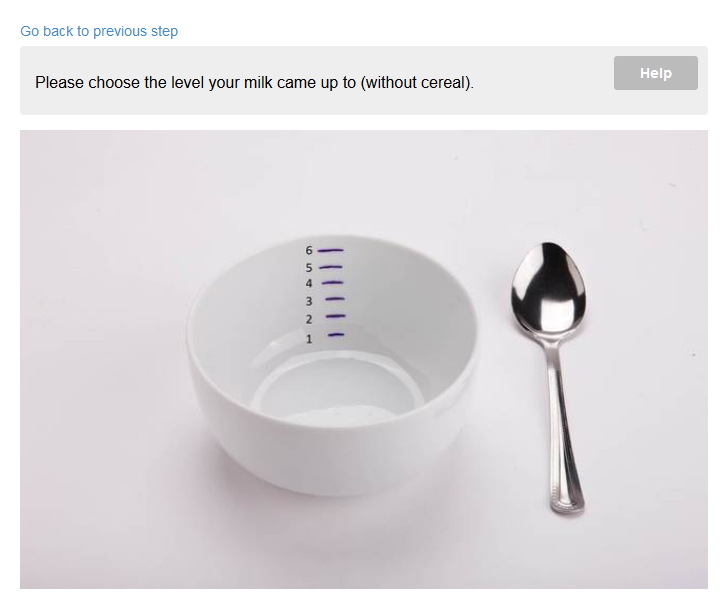
This portion size method uses an image map based on the same bowl type used for estimation of the cereal portion and offers several options of milk levels:
Parameters
No parameters.
WARNING
This portion size estimation method has a number of issues and needs a redesign:
- The cereal portion can only be estimated without milk which is not what the respondent would have seen when eating
- The milk level is supposed to be estimated "without cereal" which is confusing and impractical
Parent food portion
Method id: parent-food-portion
Defined list(s) of options (default and per-category lists) with relative portion ratios to be used for portion size estimation based on the parent food portion size.
Conversion factor
Conversion factor is not applied, the portion size estimation is based solely on the portion ratio defined in the options list.
Pizza
Method id: pizza
The pizza portion size estimation method consists of four steps.
First, the respondent is asked to choose the approximate size and shape of the pizza they had:
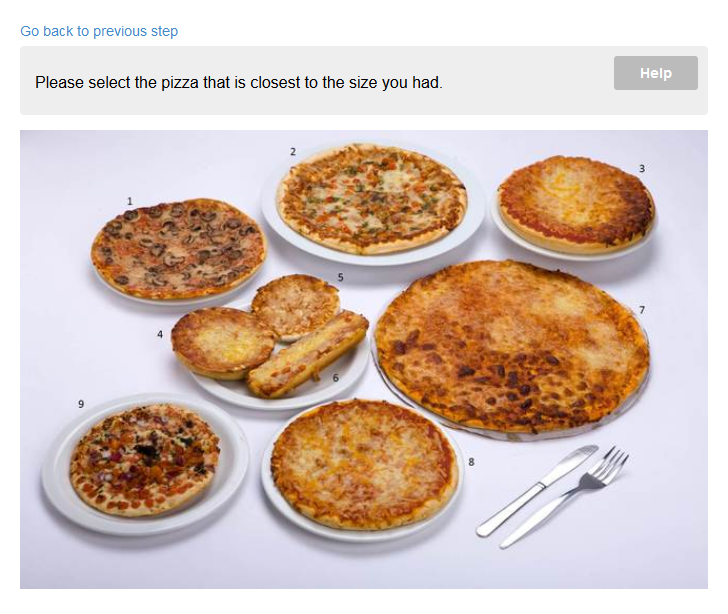
The UI element used for this step is an image map.
Then the respondent is asked to specify how thick their pizza was:
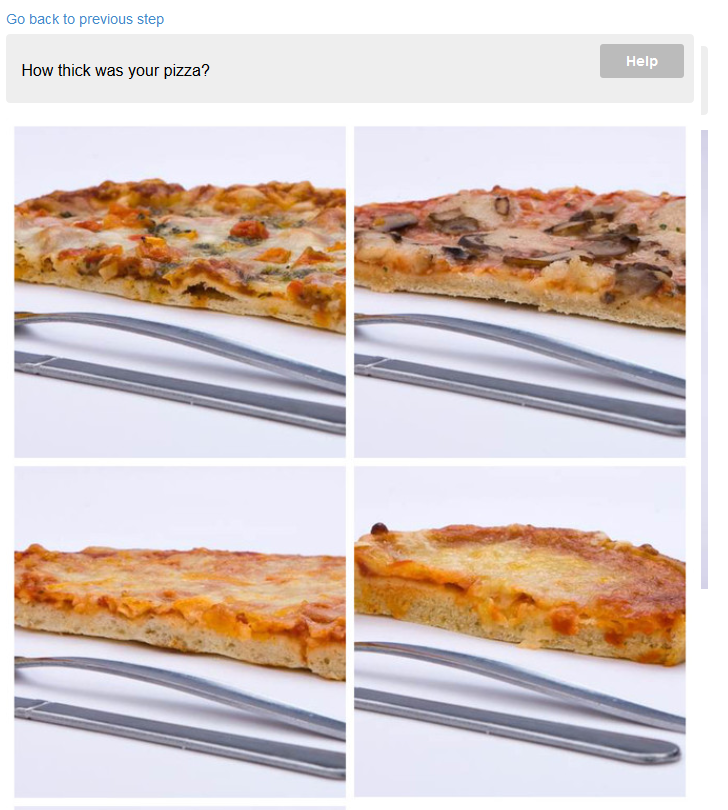
This stage also uses an image map (which is not ideal as the image maps aren't good at adapting to various screen sizes).
Based on the type of pizza selected in step 1 the system then asks the respondent to specify the size of the slice (or slices) they had with an option to select the whole pizza:
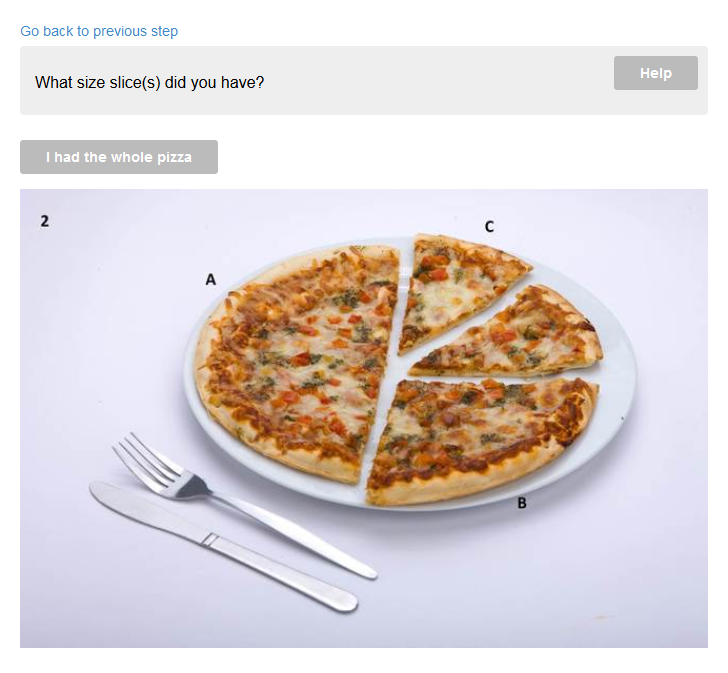
Finally, the respondent is asked how many slices (or pizzas) they had:
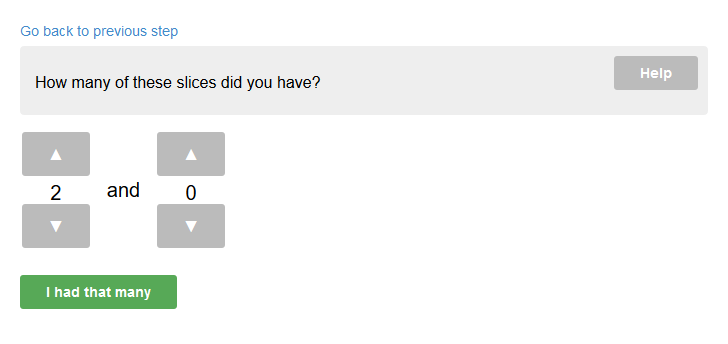
Parameters
No parameters.
Pizza V2
Method id: pizza-v2
Second iteration of the pizza portion size estimation method.
Standard portion
Method id: standard-portion
This portion size estimation method uses pre-defined standard units instead of portion size images. First, the respondent is asked to choose what unit they would like to use to estimate their portion size:
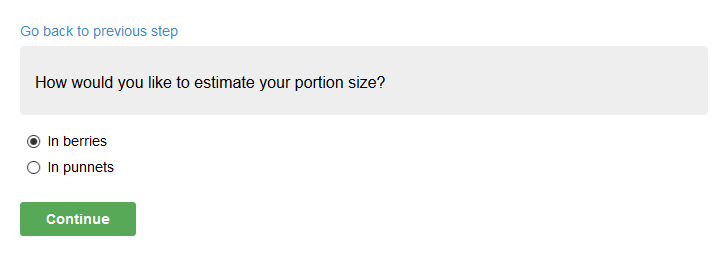
If there is only one standard unit defined in the portion size method parameters this question is omitted.
The respondent is then asked to estimate, using the selected units, the size of their portion:
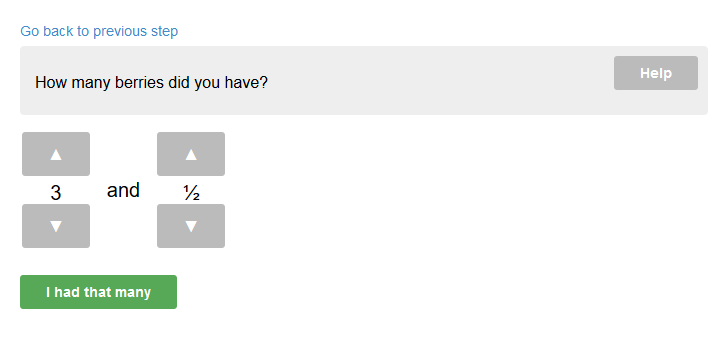
The quantity input UI consists of two counters for whole and fractional parts. Fractional counter is incremented in 1/4 steps.
There is no leftovers option for this estimation method.
Parameters
units- list of standard units for the portion size estimation to choose from.
Unknown
Method id: unknown
Unknown portion size estimation method.
Parameters:
weight- weight value to be used for portion size estimation